
Multiple accounts
If you run Claude Code under more than one account, for example one config directory per org through
CLAUDE_CONFIG_DIR, Perch can watch all of them at once. Sessions and transcripts in each directory are found
and attributed to the right account, and Perch can warn you when a session in a work folder is signed into the
wrong org.
Perch always watches your default ~/.claude directory. Everything else on this page is about the extra
directories you add.
Add a config directory
Section titled “Add a config directory”Open Settings → Config directories. The list starts with your primary directory, then any you have added. Each row shows the directory’s label, its path, the account it is currently signed into, and whether Perch’s hooks are installed there.
To add one:
- Click Add config directory….
- Choose the folder that is a
CLAUDE_CONFIG_DIRroot. - Optionally give it a label. The label is shown as a chip on that directory’s session rows.
- Leave Install Perch hooks on unless you have a reason not to (see below).
- Click Save.
Perch never adds a directory on its own. A directory is watched only because you added it.
Scan for directories
Section titled “Scan for directories”Click Scan for directories to have Perch suggest likely candidates. It looks for:
- directories a running session reported starting from,
~/.claude*folders in your home directory,claude-envsenvironments.
Suggestions are listed under Found, not added. Each one has an Add… button that opens the same dialog as a manual add, so you still confirm the label and hooks before anything changes. Nothing found is added automatically.
Rename or remove a directory
Section titled “Rename or remove a directory”Click Edit on a row to change its label or its hooks setting. The primary directory has no chip unless you give it a label.
Click Remove to stop watching a directory. Perch also takes its hooks back out of that directory’s settings. The primary directory cannot be removed.
To list what Perch is watching from a terminal, run:
perch configdirsHooks and other per-directory switches
Section titled “Hooks and other per-directory switches”Perch’s hooks are what drive the accept-edits badge, session control and auto-start. The primary directory is always hooked. Directories you add are hooked by default, and you can turn hooks off per directory in its Edit dialog.
Some other switches that live in a config directory’s own settings.json also become per-directory once you
have more than one:
- Enable Agent Teams in Claude Code shows a single toggle when you have one directory. With several, it shows an Edit… button that opens a dialog with a switch for each directory.
- The Claude Code status line is applied per directory from the statusline designer.
Labels on session rows
Section titled “Labels on session rows”When more than one config directory is in play, each session row shows its directory’s label as a small chip. Hover the chip to see which org the directory is signed into. Turn Config labels off to hide every chip.
Usage per account
Section titled “Usage per account”The usage bars split by account: you get a set of bars for each account that has a session running, plus your default account. Directories signed into the same account share one set. Accounts you know about but are not using right now appear as compact chips, checked quietly in the background.
Click an account on the overlay to collapse it to a chip or expand it back. Hovering a set shows only that account’s usage. See Usage and limits for how to read the bars.
Account guardrails
Section titled “Account guardrails”A guardrail says that everything under a folder must run on one of the accounts you choose. If a session in that folder is signed into a different org, its row gets a pulsing red outline and a second line naming what was expected and what it is actually on.
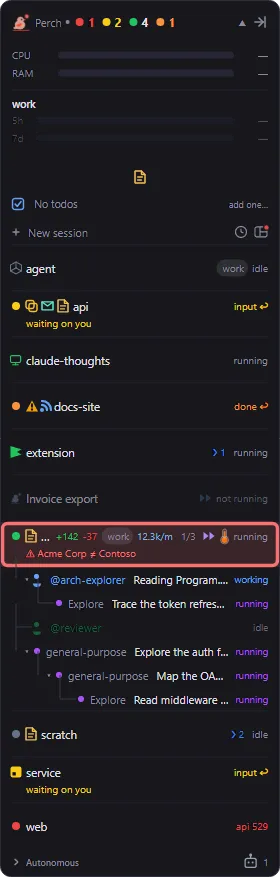
To add one, go to Settings → Config directories → Account guardrails and click Add account rule…. Pick a folder and tick the accounts allowed there. The accounts offered are the ones currently signed into your config directories. When rules overlap, the most specific (deepest) folder wins.
Guardrails only alert. Perch never blocks or stops a session.
The status line can show the same warning: the built-in Account-aware status line flags a wrong-account session in red. See Markdown viewer & statusline.
Choose the account for a new session
Section titled “Choose the account for a new session”When you start a session from Perch and there is a choice to make, the new-session screen shows an Account selector. It appears when more than one account is signed in, or when a guardrail covers the folder.
- The selector only offers the accounts a guardrail allows for that folder.
- If only one account is allowed, the selector is locked with a padlock.
- If no signed-in account satisfies the guardrail, a warning says the session will run under your current login.
Once a session is running, its footer shows which account it is on (only when you have more than one). Starting a session from a GitHub pull request follows the same rules. See Quick links, to-dos & GitHub.
Resuming keeps the account
Section titled “Resuming keeps the account”Perch remembers which config directory each session ran under. When you resume a session, it reopens under the account it ran under before, not whichever account happens to be your default.
Settings
Section titled “Settings”| Setting | What it does |
|---|---|
| Config directories | Extra Claude Code config directories Perch watches alongside ~/.claude. Add, scan, rename or remove them. |
| Account guardrails | Warn when a session runs on the wrong Claude account for its folder. Alerting only. |
| Config labels | Show each session’s config directory label on its row, when more than one directory is in play. |
| Enable Agent Teams in Claude Code | Turn on Claude Code’s experimental Agent Teams feature. Per directory when you have several. |