Friends feed
The friends feed is a small, opt-in corner of the overlay for friends who also run Claude Code with Perch. You post a short status, and see your friends’ latest statuses, moods and reactions under your sessions.
Turn it on and sign in
Section titled “Turn it on and sign in”- Turn on Social feed (search for it in Settings, or open Settings → Social).
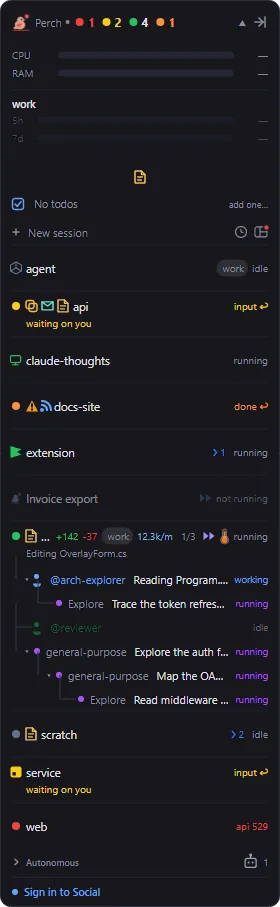
- A Sign in to Social row appears at the bottom of the overlay. Click it, or click Sign in with GitHub on the Social settings page. Your browser opens to sign in with GitHub.
- Pick a handle your friends will recognise: 3 to 20 characters of
atoz,0to9or_.
GitHub has no account picker, so a normal sign-in uses whichever GitHub account your browser is logged into. To use a different one, click Sign in with a different account, which opens a private browser window so GitHub asks.
You can change your handle later with Change handle…. Your friends and status stay; only the name changes.
Post a status
Section titled “Post a status”Right-click the friends region and choose Post a status…, click the “what are you working on?” row, or use Post a status… on the Social settings page.
- Type up to 280 characters.
- Click the mood button to pick an emoji for your mood.
- Post (Ctrl+Enter) shares it. Esc cancels.
Only your current status is kept. Posting a new one replaces the old one.
Add friends
Section titled “Add friends”Friendships are mutual, and there is no directory to browse. You add people by their exact handle.
Open Friends… from the friends region’s right-click menu, the + on the region’s header, or the Social settings page. Then:
- Enter a handle under Add a friend and click Send request.
- Under Requests, Accept or Decline requests sent to you.
- Under Friends, each friend has Report, Block and Remove. A request you sent shows Cancel instead of Remove.
Remove ends the friendship quietly: they are not told, and either of you can add the other again later. Block takes their posts out of your feed and lists them under Blocked, where Unblock undoes it. Blocks are private to you. Report files a report and blocks them in one step.
The friends region
Section titled “The friends region”The region sits on the overlay with a collapsible header. Expanded, it shows one row per friend with their mood,
@handle, latest status and how long ago they posted, plus the reactions on that status. Your own status row
sits there too, with the reactions friends have left on it.
- A dot on the Friends header means a status you have not seen yet.
- A friend’s row glows briefly when they post something new.
- Right-click a friend’s row and choose Dismiss status to hide that status until they post again.
- When you have more friends than fit, the rest fold into a “+N more” line. Most recent posts come first.
Statuses drop off once they are older than the Keep statuses for window on the Social settings page (from 12 hours to 1 week; 2 days by default).
React to a status
Section titled “React to a status”Right-click a friend’s status and choose React to @handle…, or hover their row and click the + beside their reactions. Pick any emoji from the picker, or search for one. You get one reaction per status. When several people react, the reactions fold into a count with the full tally on hover.

With Show large reactions on, a friend’s reaction to your status floats up your screen as a big emoji bubble. Click it to pop it.
Notifications and quiet time
Section titled “Notifications and quiet time”- Notify when a friend posts pops a desktop notification when a friend posts a status.
- Close friends in Do Not Disturb collapses the friends region and holds off those notifications while Windows Do Not Disturb is on. The region doesn’t reopen on a new post.
- Quiet mode silences the fun and social features for a while. Right-click the overlay header, choose Quiet mode, and pick For 30 minutes, For 1 hour, For 2 hours or Until tomorrow morning. While it is on, the friends feed is off: no region, no notifications and no Social network calls. Everything comes back when the time is up.
Sign out, export or delete your data
Section titled “Sign out, export or delete your data”Everything about your account is on Settings → Social:
- Sign out signs you out on this machine.
- Download my data (JSON)… saves everything Perch Social stores for you (your profile, status, reactions, friends and blocks) to a JSON file.
- Delete account and data… permanently deletes your Social account and all your data. You confirm by typing your handle. This cannot be undone.
Deleting your account does not remove Perch from your GitHub account’s authorized apps. GitHub controls that list; see the privacy policy for how to revoke it.
Settings
Section titled “Settings”| Setting | What it does |
|---|---|
| Social feed | The opt-in friends feed. Off makes no network calls at all. |
| Notify when a friend posts | A desktop notification when a friend posts a status. |
| Close friends in Do Not Disturb | Collapse the friends region and hold off friend notifications while Windows Do Not Disturb is on. |
| Friends shown at once | How many friends the roster shows before the rest fold into a “+N more” line. |
| Show large reactions | Float a friend’s reaction to your status as a big emoji bubble you can pop. |
Keep statuses for is set on the Social settings page.