
The session window
Perch can run Claude Code sessions itself, in its own window. You get the same Claude Code, with permission prompts as cards you click, a changed-files panel beside the conversation, and sub-agents you can watch live. When a session Perch runs needs you, clicking its row brings this window straight back.
Start a session
Section titled “Start a session”Open a new session window in any of these ways:
- Click + New session on the overlay.
- Choose New session… from the tray menu.
- Run
perchin a terminal to start one in the current folder. See Theperchcommand. - From an open session, choose New session in another folder… on the ⋯ menu.
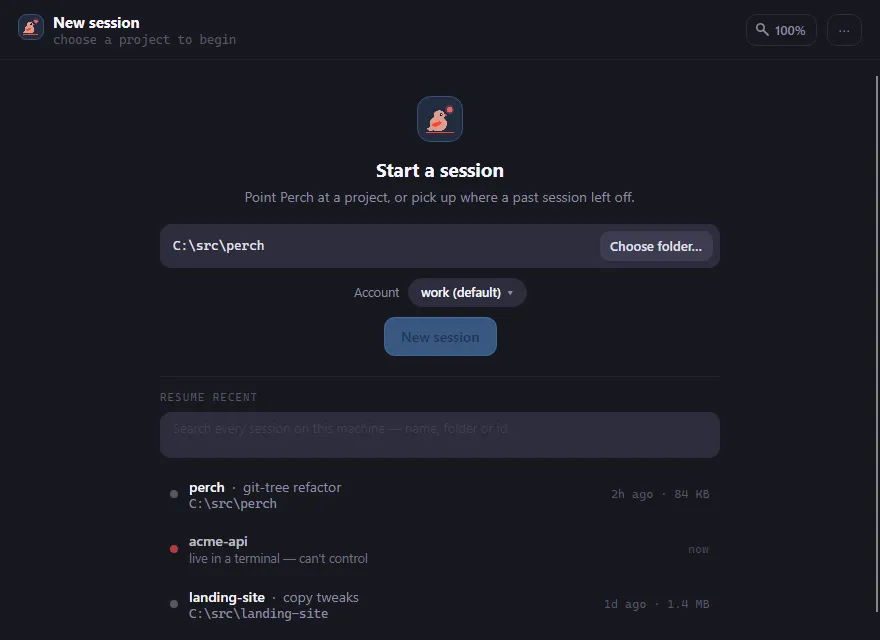
- Pick a folder. Click the folder box to see your recent project folders, or type to filter them. Tab completes the closest match, and Choose folder… opens a folder picker.
- If you have more than one Claude account signed in, pick one under Account. If an account guardrail allows only one account for this folder, the picker is locked with a padlock.
- Click New session, or press Enter.
If you haven’t used the folder with Claude Code before, Perch asks Do you trust the files in this folder?, the same check Claude Code runs. Your answer is shared with Claude Code.
Resume a past session
Section titled “Resume a past session”Under Resume recent, the same screen lists your recent sessions. The search box finds any session on this machine by name, folder or id. Click one to resume it. Right-click to copy its session id.
A session that’s still running in a terminal is marked as live in a terminal. Perch can’t resume it while it runs: close it there first, or move it into Perch (see Take over a terminal session).
A resumed session shows its conversation straight away. Claude itself starts when you send your first message. A short note above the composer estimates what resuming will cost: the context to reload, whether the cache is still warm, and the share of your 5-hour limit.
Write a prompt
Section titled “Write a prompt”Type in the composer and press Enter to send. Shift+Enter, or \ then Enter, adds a new line.
- Mention files by typing
@. Perch lists matching files in the project (respecting.gitignore); pick one with the arrow keys and Tab or Enter. - Recall earlier prompts with ↑ at the start of the composer. ↓ moves forward again and gets your draft back.
- Attach images by pasting (Ctrl+V), dragging them in, or clicking the paperclip. Each image leaves an
[Image #N]marker in your text. Delete the marker to remove the image, or remove the image to delete the marker. Images over 5 MB aren’t attached. - Drag in other files to insert their paths.
Slash commands
Section titled “Slash commands”Type / at the start of a message to open the command palette. Use the arrow keys to choose, Tab to
complete and Enter to run. Skills also autocomplete partway through a message.
Most commands go to Claude Code as normal (for example /clear, /compact, /rename, /context). A few
open Perch’s own panels instead:
| Command | What happens |
|---|---|
/model, /effort |
Opens the model or effort menu. |
/resume |
Opens a search of this project’s sessions. Enter resumes in this window, Shift+Enter in a new one. |
/usage |
Opens your plan’s usage bars, with reset times. |
/mcp |
Opens the MCP server status window. |
/autocompact |
Sets whether and when the conversation compacts automatically. |
/rc |
Turns remote control on or off. |
/login, /logout |
Opens a terminal running Claude Code’s sign-in. |
/exit |
Ends the session and closes the window, without asking. |
The composer’s pills and toolbar
Section titled “The composer’s pills and toolbar”Along the bottom of the composer:
- Model and effort: click to change mid-session.
- Permission mode: ask, auto, plan mode, accept edits or bypass permissions. Click to change.
- Branch: the current git branch, with how far ahead (↑) or behind (↓) its upstream it is.
- Account: which account the session runs under (only when you have more than one).
- Context bar: how full the context window is. Hover for the numbers.
Above the text box are the paperclip, the same glyphs the session’s overlay row shows (pull request, Jira ticket, notifications, remote control and so on), and a ⋯ menu to turn on remote control, external notifications, or open the git history.
Answer Claude
Section titled “Answer Claude”When Claude needs a decision, the turn pauses and a card appears in the conversation.
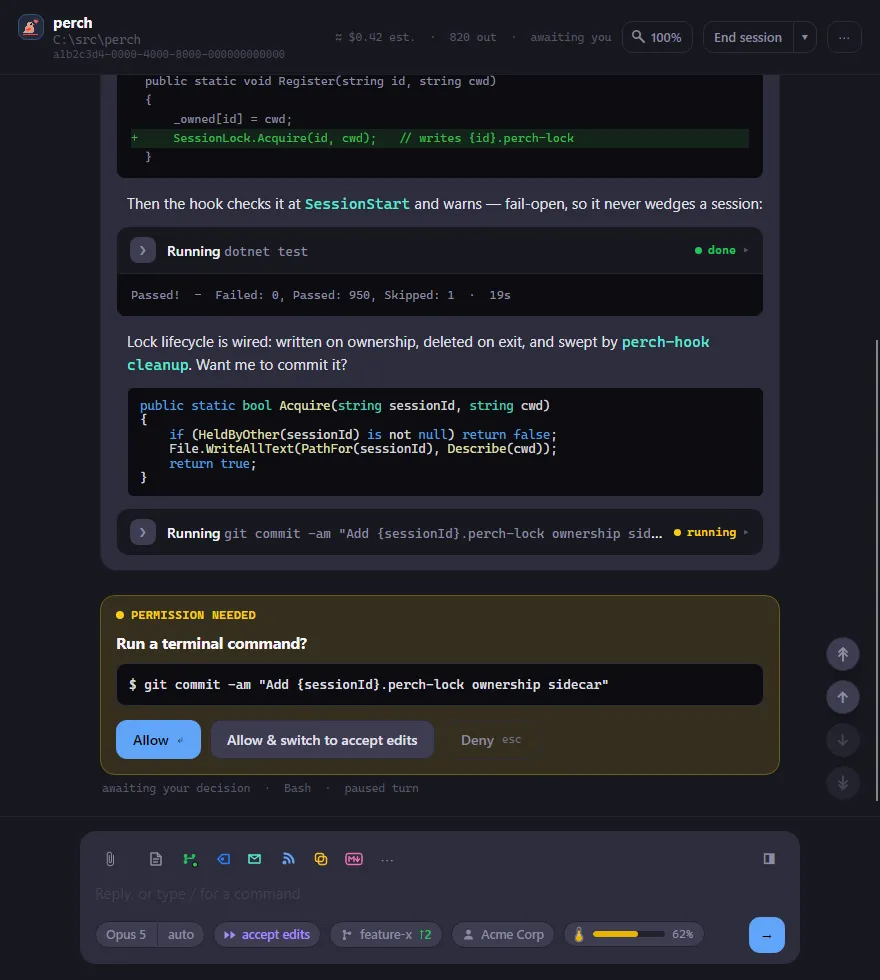
- Permission cards (“Permission needed”) say what Claude wants to do: run a command, edit a file, fetch a page. Click Allow or Deny. When Claude Code suggests one, a third button allows and switches the session’s permission mode at the same time. With the composer empty, Enter allows and Esc denies.
- Plan cards show Claude’s plan. Click Approve (or approve and switch mode), or Keep planning.
- Question cards (“Claude is asking”) offer answers as buttons. Pick one, or choose Other to type your own. Questions that allow several answers say “choose any that apply”. Click Submit, or Skip (Esc).
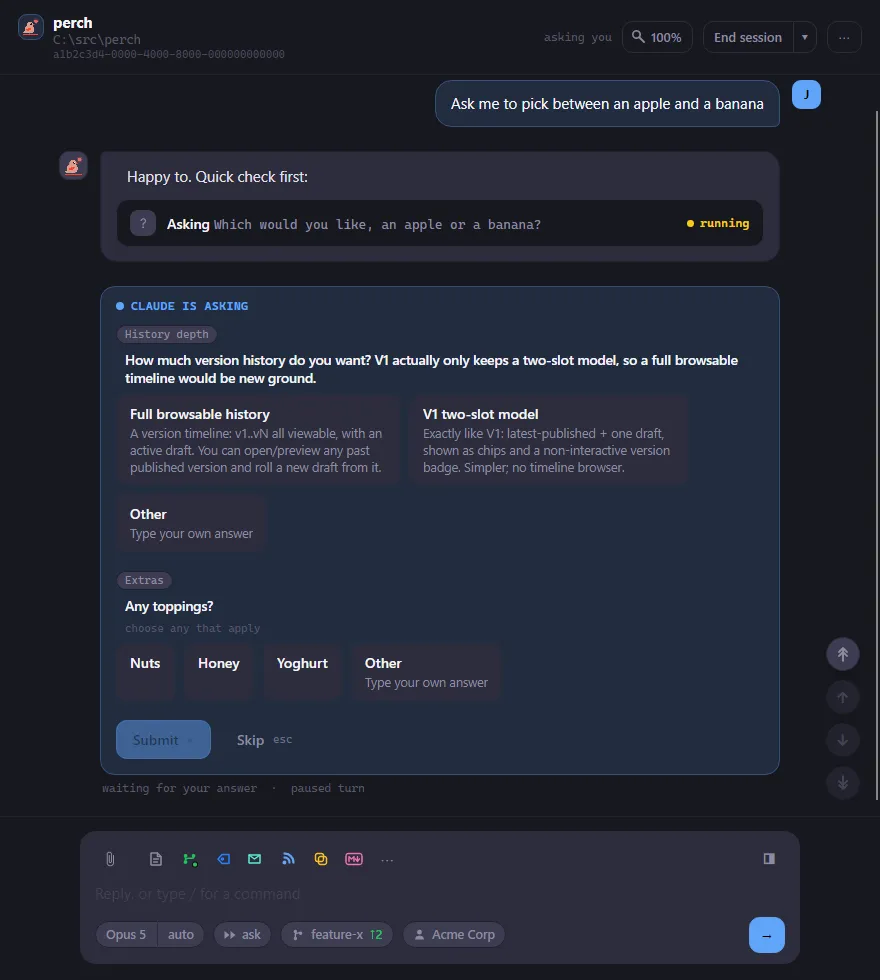
After you answer, the card shrinks to a one-line receipt such as “Allowed” or “Answered”. A prompt answered from your phone over remote control shows “Answered remotely”.
If a session needs a decision while its window is hidden (and it isn’t on screen in the Roost), Perch shows a desktop notification saying a session needs you.
Read the conversation
Section titled “Read the conversation”- Replies render as Markdown while they stream in. Claude’s thinking shows as a collapsible “Thought” line.
- Tool calls are cards. Edits and writes show a diff. Click a card’s header to expand it and see its output.
- Consecutive Read, Grep and Glob calls fold into one line, such as “Searched for 3 patterns, read 1 file”. Click it to see each call. The line turns red if any of them failed.
- When you scroll through a long open card, its header stays pinned at the top. Click the pinned header to fold the card, or use its ↑ / ↓ buttons to jump to the card’s start or past its end.
- Copy a whole message with the copy button that appears when you hover it. Or drag-select across paragraphs, lists, code and tables: Ctrl+C copies the Markdown, and right-click offers Copy as plain text.
- File paths in replies are links. Ctrl+click opens one: Markdown files in Perch’s viewer, everything
else in VS Code at the right line. Right-click a path for more: view diff, reveal in Explorer (Finder on
macOS), open in VS Code, copy path, open
.htmlin a browser, or Publish as artifact…. - The jump buttons on the right go to the start, the previous or next prompt, or the latest reply.
- Ctrl+F opens the find bar. Enter and Shift+Enter step through matches.
To stop Claude mid-turn, press Esc, click Interrupt, or press Ctrl+C with nothing selected. While a turn runs you can keep typing: what you send is queued.
Watch sub-agents and background tasks
Section titled “Watch sub-agents and background tasks”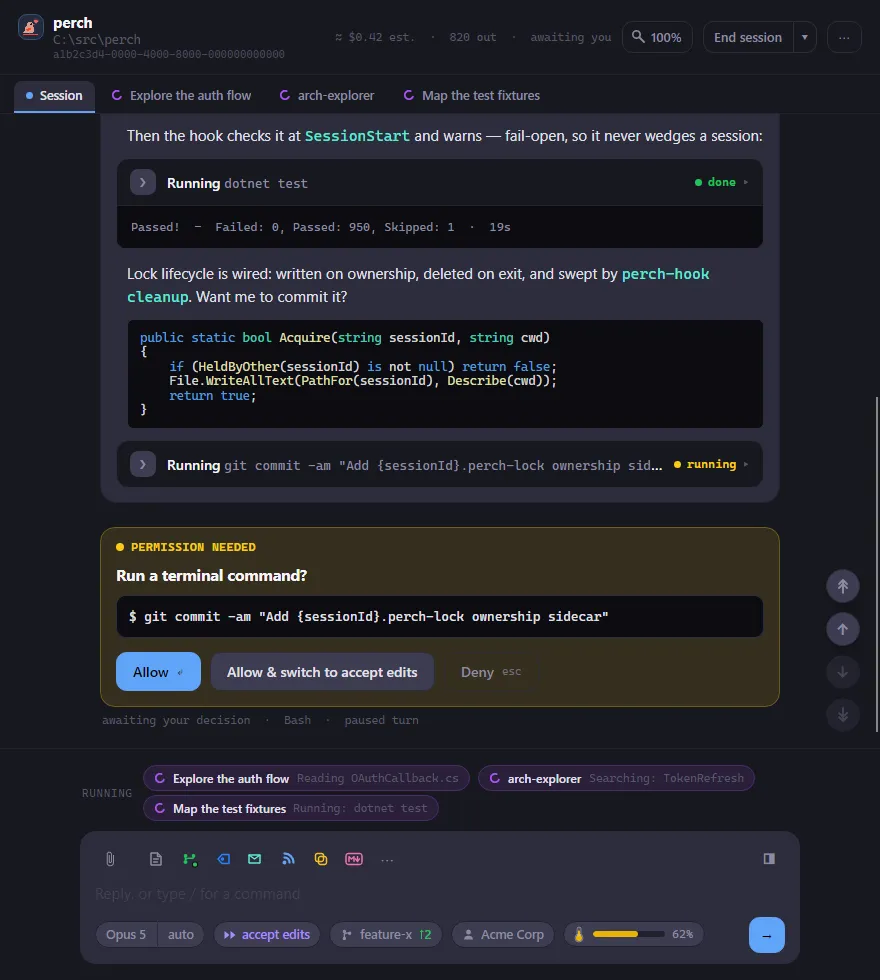
When Claude starts sub-agents, each one gets a tab next to Session at the top of the window. Click a tab to watch that agent’s log live. Sub-agent tabs are read-only, since sub-agents take their instructions from the session; click Back to session or press Esc to return. When the agent finishes, the window returns to the session on its own. A permission prompt brings you back too.
The Running row above the composer shows a chip for each sub-agent and background task (shells and monitors) still working. Click a chip to see its output. A stop button on a background task’s chip stops it.
Review changed files
Section titled “Review changed files”Click the panel button at the top right of the composer to open Changed files: every file the project’s git diff shows, with its status and lines added and removed. Click a file to open its diff in the git history window. The panel refreshes after each tool call, or click Refresh.
Remote control
Section titled “Remote control”Type /rc, or choose Turn on remote control on the composer’s ⋯ menu, so you can carry on
the session from your phone or claude.ai. Type /rc again to turn it off.
To connect your phone, open the remote control glyph’s menu and choose Show QR code. The code opens on the same monitor as the session window. When Claude is waiting on an answer only your phone can give, the session shows “awaiting remote”.
Make the window’s text bigger or smaller with Ctrl+= and Ctrl+−, or Ctrl+wheel. Ctrl+0 resets it. The magnifier button in the title bar shows the current level; click it to pick one from 75% to 200%. All session windows share the same zoom.
Close, end or restart
Section titled “Close, end or restart”- Closing the window (×) only hides it. The session keeps running and stays on the overlay. Click its row to bring the window back.
- End session stops Claude and closes the window. Perch asks first.
- Restart session, in the ▾ beside End session, restarts the same conversation in a fresh Claude process. Perch asks first only if something is in progress.
- Resume appears in the title bar once a session has ended.
When a session’s sign-in is about to expire, a banner above the composer warns you. If restarting will pick up a fresh sign-in, the banner has a Restart button.
When Perch exits
Section titled “When Perch exits”If you exit or update Perch, its sessions aren’t lost. They stay on the overlay and in the Roost, marked “not running”. Reply to one to pick it up again with the same model and mode. Only End session removes them. If a session is mid-turn, Perch asks before exiting.
The ⋯ menu
Section titled “The ⋯ menu”The ⋯ menu in the title bar has:
- Hand back to a terminal
- Copy resume command (copies
claude --resume <id>) - Open project folder in Explorer (Finder on macOS)
- Open project folder in a terminal
- New session in another folder…
Click the session id under the title to copy it.
Take over a terminal session
Section titled “Take over a terminal session”To move a session from a terminal into Perch, right-click its overlay row and choose Elevate to Perch (PoC)…, or use Take over in Perch on its pane in the Roost. Perch asks first, stops the terminal’s Claude process and resumes the same conversation in a session window.
To read a session without taking it over, open it from View history on its row. History uses the same view as the session window, read-only. See History and search.
Keyboard shortcuts
Section titled “Keyboard shortcuts”| Shortcut | What it does |
|---|---|
| Enter | Send. With the composer empty, allow a pending permission. |
Shift+Enter, or \ then Enter |
New line |
| ↑ / ↓ | Earlier and later prompts |
| Tab | Complete a slash command, @ mention or folder |
| Esc | Close the open popup or bar; otherwise deny a pending permission, or interrupt the turn |
| Ctrl+C | Copy the selection, or interrupt if nothing is selected |
| Ctrl+V | Paste text or an image |
| Ctrl+F | Find in the conversation |
| Ctrl+= / Ctrl+− / Ctrl+0 | Zoom in, out, reset (or Ctrl+wheel) |
Settings
Section titled “Settings”| Setting | What it does |
|---|---|
| Recent sessions | Show the Recent button on the overlay, listing sessions that ended lately to pick back up. |
| Roost button | Show the button that opens the Roost, where you can answer Perch sessions from a pane. |