
History & search
Perch can open any Claude Code transcript on your machine, live or finished, and render it the same way a live session looks. You can also search the text of every transcript at once and land straight on the hit.
Open the history viewer
Section titled “Open the history viewer”Open it in any of these ways:
- Right-click the tray icon and choose Session history….
- Right-click a session on the overlay and choose View history.
- Right-click a daemon worker row or a not-running Perch session and choose View history.
Opening from a session row loads that session straight away. Opening from the tray shows an empty viewer: click Search sessions in the toolbar to pick one.
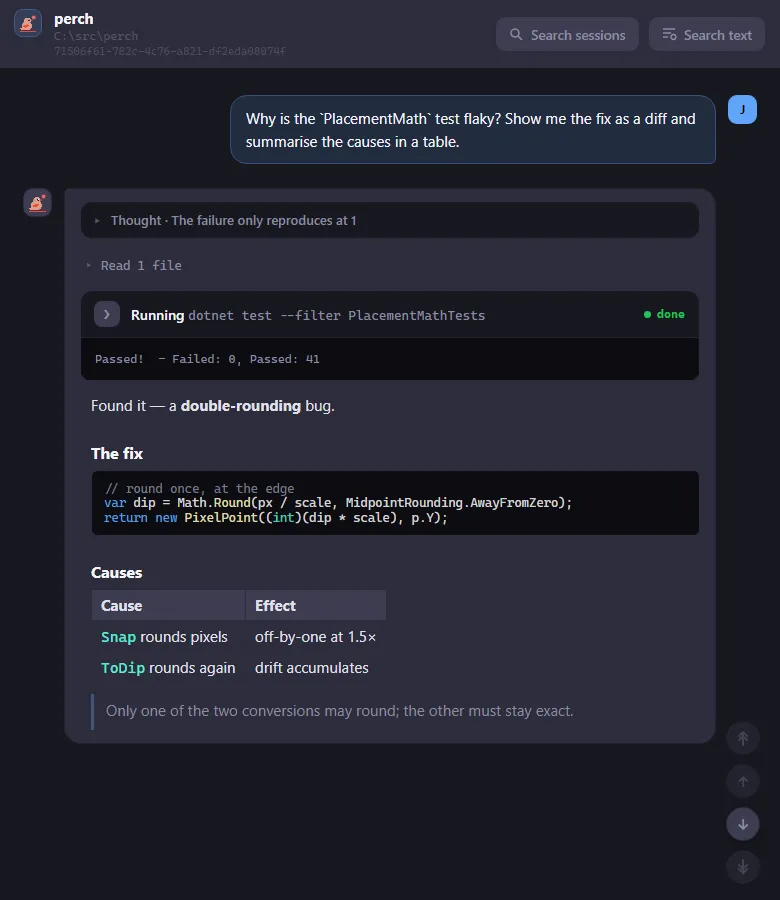
The viewer is read-only. It shows the same prompt bubbles, tool cards, diffs and Markdown as the session window, with no composer or controls.
- The header shows the session’s name, its working folder and its session id. Click the id to copy it.
- Floating buttons at the bottom right jump to the top, the previous prompt, the next prompt and the bottom. A button is dimmed when it has nowhere to go.
- File paths in tool cards and code open in Perch’s Markdown viewer, or as a diff in the git tree.
- A finished transcript opens at the top. A session that is still running opens at the end.
Pick a session
Section titled “Pick a session”Search sessions opens a small palette over the viewer. Type to filter by name, folder or session id. Use the arrow keys to move, Enter to open the highlighted session, and Esc to dismiss. Each row shows whether the session is live, its folder, when it last ran and the transcript’s size.
Follow a live session
Section titled “Follow a live session”If the session is still running, the viewer follows it. New lines are added as Claude Code writes them, without reloading, so your scroll position and any expanded tool cards stay put.
Large transcripts
Section titled “Large transcripts”Transcripts of 10 MB or more are not loaded automatically, because they can be slow to render. Perch shows the size and a Load anyway button instead.
Search every transcript
Section titled “Search every transcript”To find a conversation by what was said in it, right-click the tray icon and choose Search transcripts…, or click Search text in the history viewer’s toolbar.
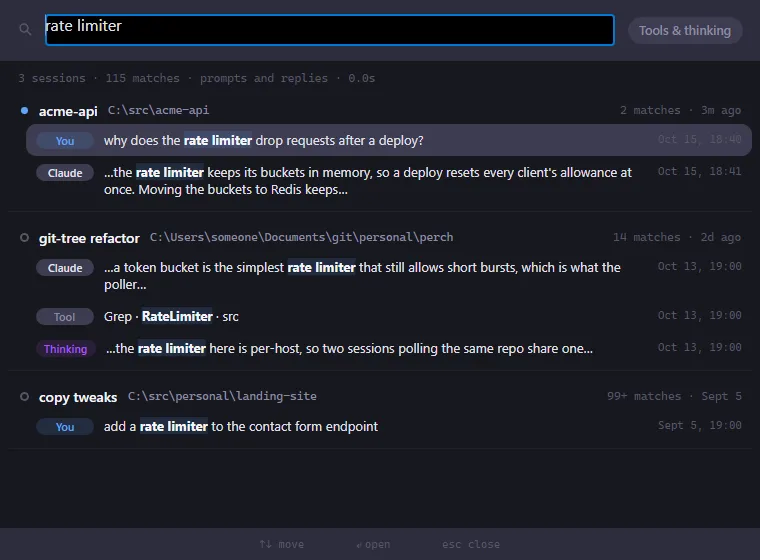
- Type at least two characters. Matching is case-insensitive.
- Results stream in as transcripts are scanned, grouped by session with the newest first and running sessions at the top.
- Each session shows its match count and up to three one-line excerpts, labelled You, Claude, Tool or Thinking.
- By default only your prompts, Claude’s replies and agents’ reports are searched. Turn on Tools & thinking to also search tool calls, tool output and Claude’s thinking.
- Use the arrow keys to move between hits, Enter to open one, and Esc to close.
The window stays open while you read, so you can try the next hit without searching again.
Land on a hit
Section titled “Land on a hit”Opening a hit loads that session in the history viewer and opens the find bar on your search, with the first match in that part of the conversation selected. Step through the rest from the find bar.
Find in a conversation
Section titled “Find in a conversation”Press Ctrl+F in the history viewer to open the find bar. Every match is highlighted and the current one is scrolled into view, with an “n/m” counter beside the box.
- Enter goes to the next match, Shift+Enter to the previous one. The arrow buttons do the same.
- Esc closes the find bar. Press Esc again to close the window.
The same find bar works in the live session window.
See a day as a timeline
Section titled “See a day as a timeline”The flight path shows one day of work as a timeline, with one lane per session. Each lane is coloured by state: active, waiting for input, idle (done) or stuck. API errors are marked with their status code, and a dashed line marks the current time.
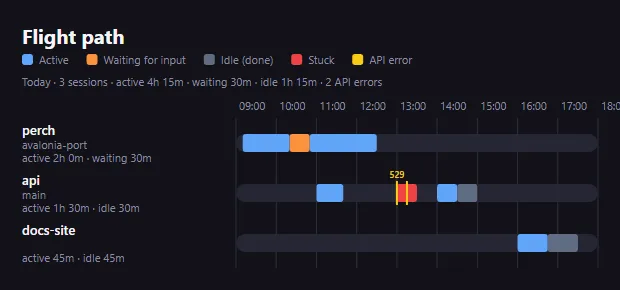
Open it from the tray menu (Flight path…) or from Settings → Session Stats → Open flight path…. Use the ‹ and › buttons, or the left and right arrow keys, to move between days. Today jumps back.
Export a session for replay
Section titled “Export a session for replay”Settings → Export saves a session as a portable .perchreplay recording. Pick the session, then click
Export… and choose where to save it.
Redact content (recommended) is on by default. It removes message text, tool input and output, file paths, titles and the git branch, and keeps only the structure, timings, token counts and models. Turn it off only for a private recording you will not share: a raw recording contains your session word for word.
Play a recording back through Perch with perch replay <recording>.