
The Roost
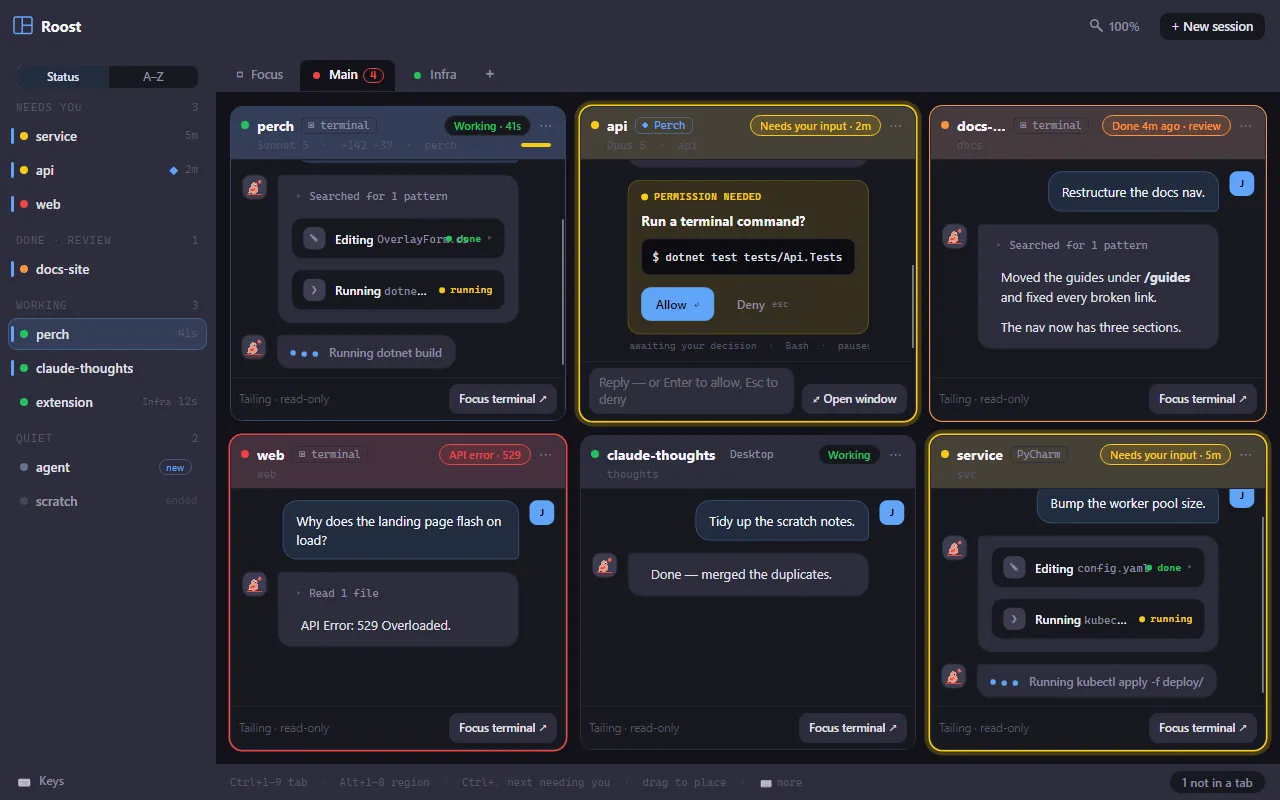
The Roost is one big window that shows every session at once. A rail on the left sorts them by who needs you most, and the stage on the right shows live panes you can read, answer and jump from. Use it when you run several sessions and want to see them all without hunting through terminals.
Open the Roost
Section titled “Open the Roost”- Click the split-panes Roost button on the overlay’s + New session row. A dot on it means a session is waiting for you.
- Choose Roost… from the tray menu.
- Press Alt+Shift+R from anywhere. You can change this shortcut on the Keyboard shortcuts page in Settings (“Open the Roost”).
The first time you open it, Perch makes a Main tab holding up to six of your live sessions.
Read the status rail
Section titled “Read the status rail”The rail lists every live session. Use the toggle at the top to choose how:
- Status groups sessions by what they need from you: Needs you (waiting for input, or stopped on an API error, longest-waiting first), Done · Review, Working and Quiet. Each heading shows a count.
- A–Z lists them all by name.
Each row shows the session’s status dot and name, a ◆ for sessions Perch runs, and how long it has been in its current state. A coloured bar marks sessions in the tab you’re looking at; sessions in another tab show that tab’s name; a new pill marks one you haven’t placed yet. Sessions that ended stay greyed in Quiet for ten minutes.
Click a row to go to it. If it’s in a tab, the Roost switches to that tab. If it’s in no tab, it opens in the Focus tab.
At the foot of the rail:
- Recent lists sessions that ended lately, with a dot when one was cut off and you haven’t looked. Pick one back up, open it in a terminal, or dismiss it.
- N hidden lists panes you closed. Click one to reopen it, or choose Reopen all.
- Keys shows every Roost shortcut.
The bottom bar tells you about sessions you can’t see: N not in a tab (click to focus the most urgent), and N need you in other tabs (click to go there).
Work with tabs
Section titled “Work with tabs”Each tab has its own layout of up to eight regions, each holding one session.
- Focus is always the first tab. It has a single region and shows whichever session in no tab you last clicked. You can’t rename, close or re-lay it out.
- Add a tab with the + at the end of the strip, or Ctrl+T. You can have up to 12.
- Rename a tab by double-clicking it, pressing F2, or right-clicking and choosing Rename.
- Duplicate a tab’s layout (with empty regions) from its right-click menu.
- Close a tab with Close tab on its right-click menu, or middle-click it. Its sessions go back to the rail.
- Reorder tabs by dragging one onto another.
Tabs light up when something inside them needs you: the dot takes the colour of the most urgent session, a count shows how many need you or are done for review, and on tabs you’re not looking at the dot pulses when a session is waiting or has errored.
Your tabs, layouts, hidden panes, rail sort and zoom are saved, so the Roost comes back the way you left it after a restart.
Place sessions
Section titled “Place sessions”- Drag a rail row or a pane’s header onto a region to put that session there. The session that was there swaps into the old spot, or goes back to the rail.
- Drag onto a tab to drop the session into that tab without leaving the one you’re on. Hold it over the tab for a moment to switch to it and carry on dragging.
- Click an empty region to pick a session for it: sessions in no tab come first, then ones in other tabs (which move here), then + New session here.
- Esc cancels a drag.
To give one pane the whole tab, double-click its header, choose Zoom / restore from its ⋯ menu, or press Ctrl+Shift+Z. Do it again (or press Esc) to restore the layout.
Paint your own layouts
Section titled “Paint your own layouts”Right-click a tab and choose Edit layout… to open the painter.
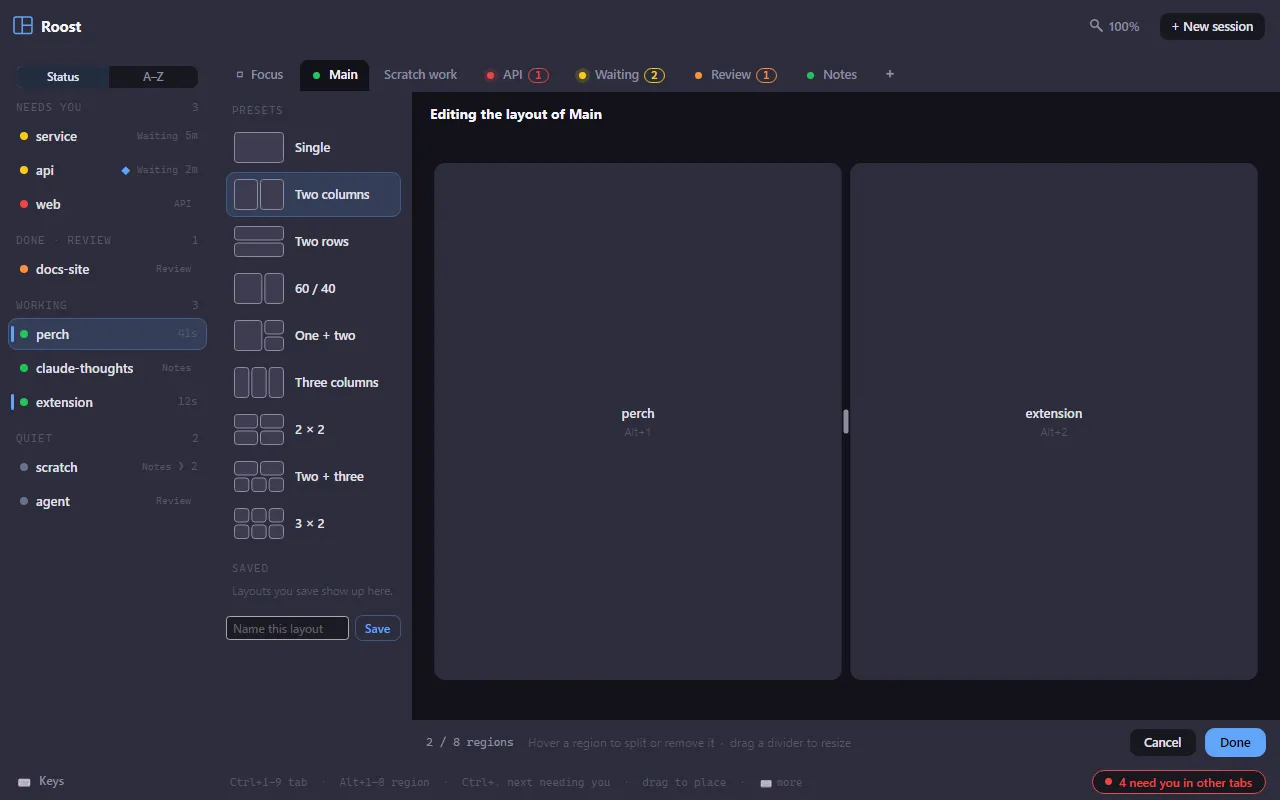
- Pick a starting shape from Presets: Single, Two columns, Two rows, 60 / 40, One + two, Three columns, 2 × 2, Two + three or 3 × 2.
- Hover a region to split it side by side or top and bottom, or remove it (a neighbour grows into its space, and its session goes back to the rail).
- Drag a divider to resize. Dividers snap to a grid.
- To keep a layout, type a name in Name this layout and click Save. Saved layouts appear under Saved; right-click one to rename or delete it. Typing an existing name replaces it.
- Click Done (or press Enter) to use the layout, or Cancel (or Esc) to put it back.
Sessions follow their regions into the new layout.
Answer from a pane
Section titled “Answer from a pane”Each pane shows the session’s conversation, its status, model, line churn, folder and a context bar. What you can do depends on the session.
Sessions Perch runs (marked ◆ Perch) have a reply box at the bottom of the pane:
- Type and press Enter to send. Shift+Enter adds a new line.
- While a turn is running, what you type is queued. Esc interrupts the turn.
- When Claude asks for permission, press Enter in an empty reply box to allow it, or Esc to deny it. Enter and Esc also work on the pane you last clicked into, without focusing the reply box.
- Open window opens the session in its full session window.
Terminal and IDE sessions are read-only in the Roost (Tailing · read-only). The pane follows the transcript and shows the most recent part of it; click Load earlier for more.
- Focus terminal takes you to the session’s window, as a click on its overlay row does.
- Take over in Perch stops the session in its terminal and continues the same conversation in Perch. It asks first, and only appears for terminal sessions Perch doesn’t already run.
A pane’s ⋯ menu also has Remove from tab (back to the rail), Copy resume command (copies
claude --resume <id>) and Close pane, which hides it under N hidden.
Sessions that aren’t running
Section titled “Sessions that aren’t running”When Perch closes (an exit, an update, a restart), the sessions it runs wait for you, marked “not running”.
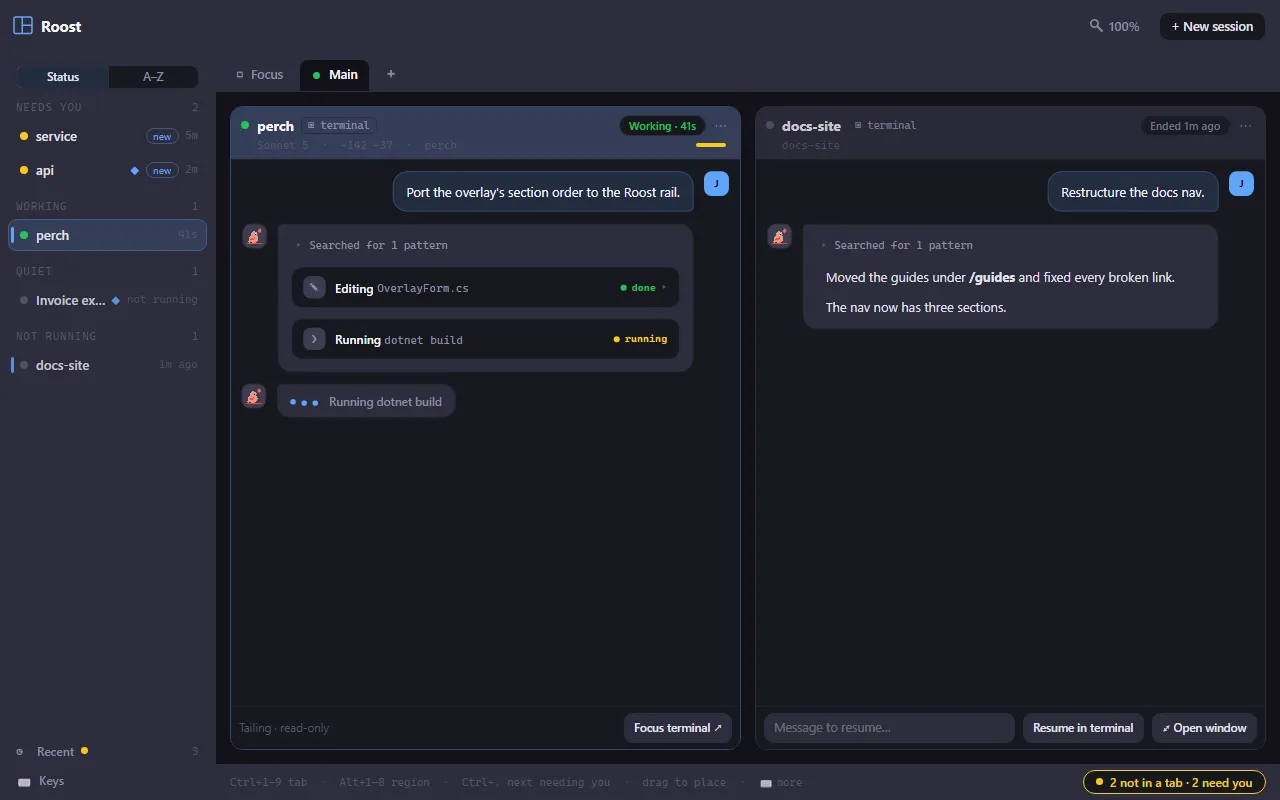
If a tab holds one, it appears in the rail under Not running, and its pane shows how it stopped (for example “Interrupted” or “Before shutdown”). Type a message in its pane to resume it, or use Resume in terminal or Open window. Its ⋯ menu has End session to remove it for good.
Sessions that ended and aren’t in a tab are in the Recent list at the foot of the rail.
Less noise while you watch
Section titled “Less noise while you watch”- Perch doesn’t send a notification for a session whose pane you can already see in the active Roost. If you look away while the session is still waiting, the notification arrives then.
- When a session newly needs you and the Roost isn’t the active window, its taskbar button flashes (on macOS, the Dock icon bounces once).
- Pulsing rings and tab dots hold still if you’ve turned off animations in Windows.
Make the whole Roost bigger or smaller with Ctrl+= and Ctrl+−, or Ctrl+wheel. The magnifier button in the title bar shows the current level; click it to pick a level from 75% to 200%, or Reset to 100%.
Keyboard shortcuts
Section titled “Keyboard shortcuts”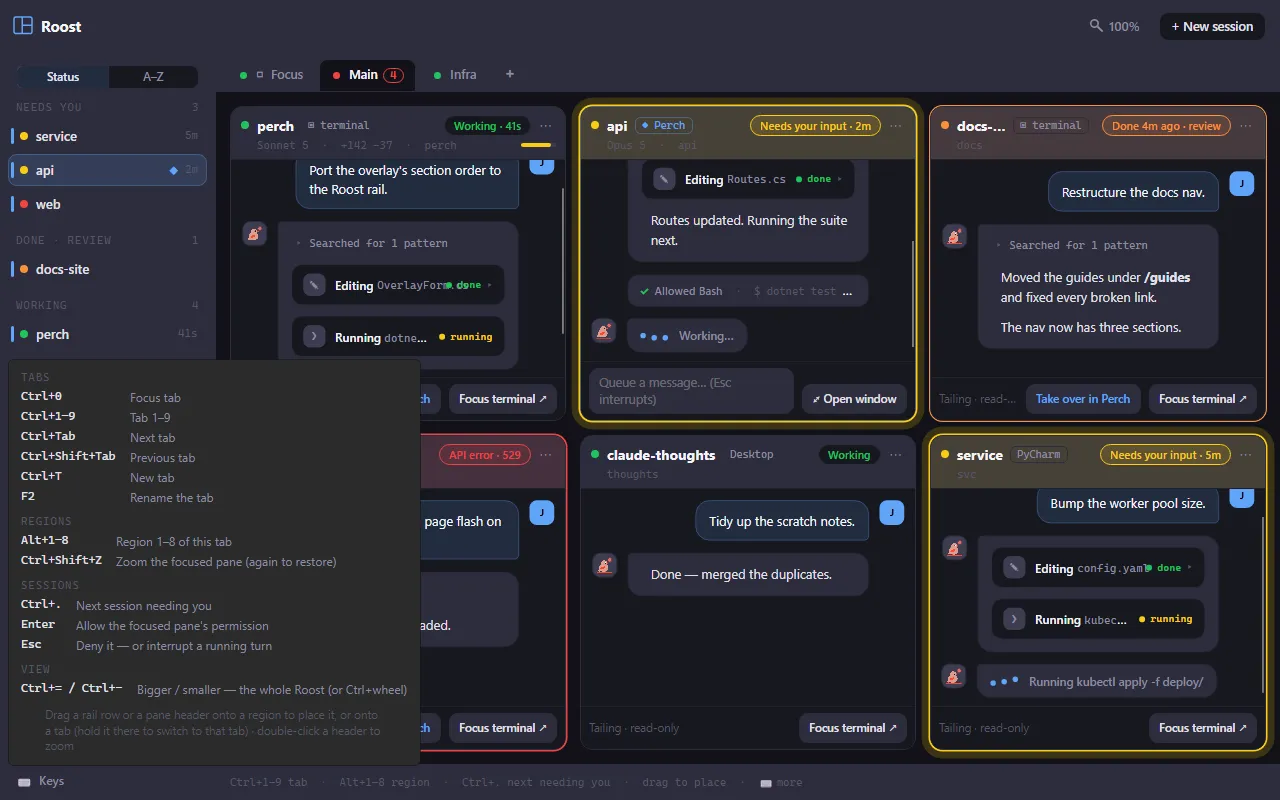
| Shortcut | What it does |
|---|---|
| Alt+Shift+R | Open the Roost (from anywhere) |
| Ctrl+0 | Focus tab |
| Ctrl+1 to Ctrl+9 | Tab 1 to 9 |
| Ctrl+Tab | Next tab |
| Ctrl+Shift+Tab | Previous tab |
| Ctrl+T | New tab |
| F2 | Rename the tab |
| Alt+1 to Alt+8 | Region 1 to 8 of this tab |
| Ctrl+Shift+Z | Zoom the focused pane (again to restore) |
| Ctrl+. | Next session needing you |
| Enter | Allow the focused pane’s permission |
| Esc | Deny it, or interrupt a running turn |
| Ctrl+= / Ctrl+− | Bigger / smaller (or Ctrl+wheel) |
Ctrl+. cycles through sessions that need you, then ones done for review, in rail order. Click the hint line at the bottom of the Roost, or Keys in the rail, to see the full list.
Settings
Section titled “Settings”| Setting | What it does |
|---|---|
| Roost button | Show the split-panes button on the overlay’s + New session row that opens the Roost. The tray menu and Alt+Shift+R work either way. |
| Recent sessions | Show the Recent button beside the Roost button on the overlay, listing sessions that ended lately. |