
First run
Perch has a lot of features, and you don’t need most of them on day one. The first time it starts, a short Quick Start asks how much you want switched on, so you can begin with the essentials and add more later. It takes about a minute, and nothing in it is permanent.
What happens when Perch first starts
Section titled “What happens when Perch first starts”- It appears in the tray (the menu bar on macOS). There’s no main window. Left-click the icon for Settings, right-click it for the full menu.
- It connects to Claude Code. Perch adds a few hooks to Claude Code’s
settings.jsonthat point at its own smallperch-hookprogram. There’s no plugin to install, and uninstalling Perch removes them. - On macOS, you may see two one-time prompts: Notifications, for session alerts, and Automation
(control Terminal), so clicking a session can focus its exact window. Both are optional. Perch also links
the
perchcommand into~/.local/bin. - The Quick Start opens. It only appears once, on a fresh install. If you’re upgrading from an older version, you won’t see it, and your settings are left alone.
The Quick Start, step by step
Section titled “The Quick Start, step by step”Use Next and Back, or the left and right arrow keys. You can also click any step in the left-hand list.
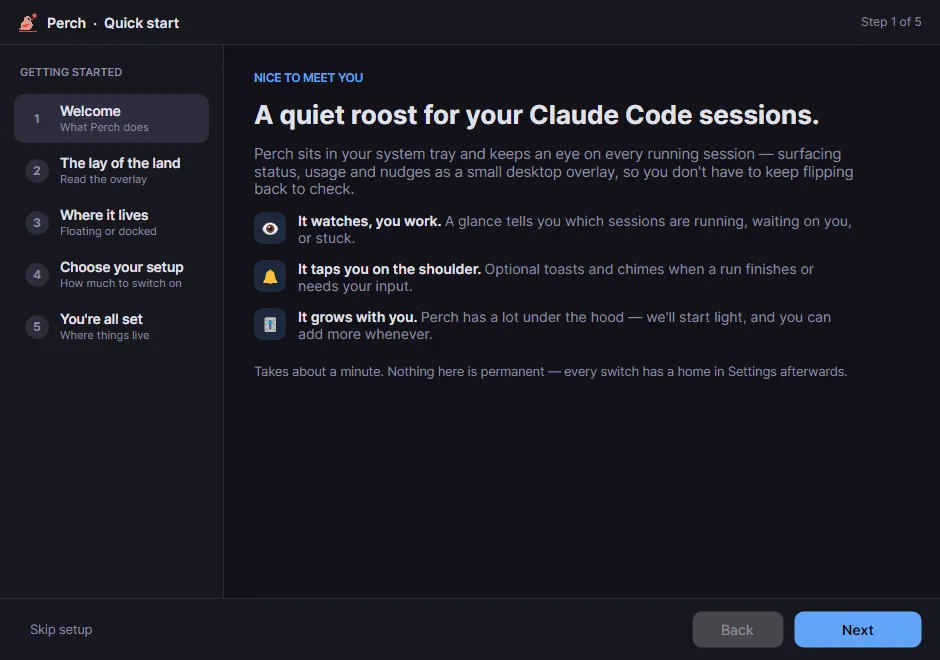
1. Welcome
Section titled “1. Welcome”What Perch does, in three lines: it watches your sessions, taps you on the shoulder when one needs you, and starts light.
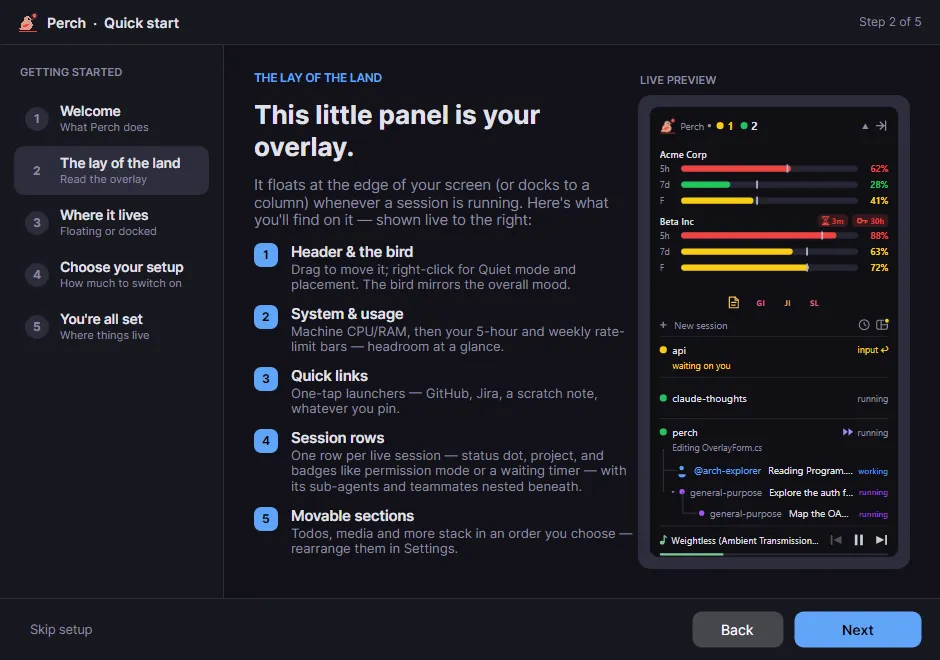
2. The lay of the land
Section titled “2. The lay of the land”A labelled tour of the panel, with a live preview next to it: the header, the system and usage bars, quick links, one row per session, and the sections you can reorder later.
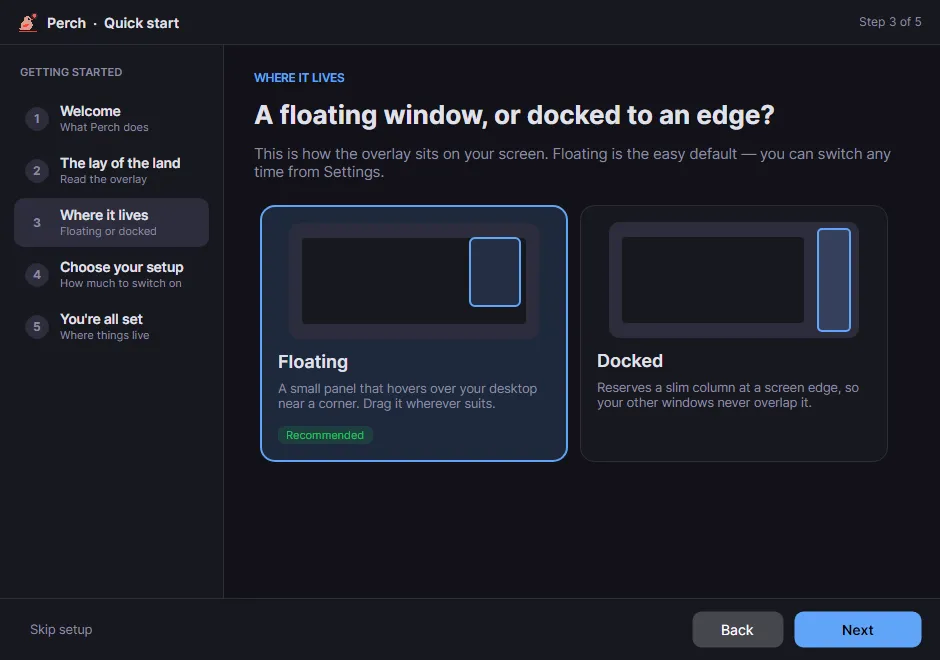
3. Where it lives
Section titled “3. Where it lives”Choose how the panel sits on your screen:
- Floating (recommended): a small panel near a corner of your screen that you can drag anywhere.
- Docked: reserves a slim column at a screen edge, so other windows never cover it. Windows only.
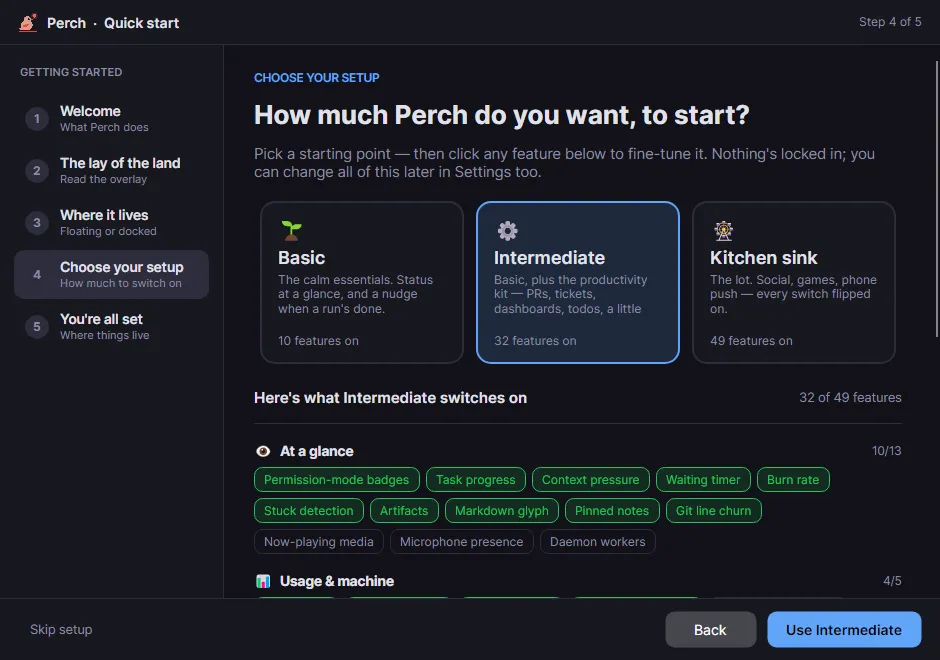
4. Choose your setup
Section titled “4. Choose your setup”Pick a starting point. Each one includes everything in the one before it:
| Setup | Features on | What you get |
|---|---|---|
| Basic | 10 | The calm essentials: status at a glance, usage bars, and a notification when a session is done or waiting. No sounds. |
| Intermediate | 32 | Basic, plus chimes, more detail on each row, pull-request and Jira signals, to-dos and a little fun. |
| Kitchen sink | 49 | Everything, including phone push, the friends feed and achievement toasts. |
Under the cards is the full list of what your choice switches on, grouped by area. Click any feature to turn it on or off; your mix then shows as “custom”. If you’re not sure, start with Basic. It’s easy to add things later and harder to notice what you’d turn off.
Exactly what each setup turns on
| Group | Basic | Intermediate adds | Kitchen sink adds |
|---|---|---|---|
| At a glance | Permission-mode badges, Task progress, Context pressure, Waiting timer | Burn rate, Stuck detection, Artifacts, Markdown glyph, Pinned notes, Git line churn | Now-playing media, Microphone presence, Daemon workers |
| Usage & machine | Usage bars, System metrics | Monthly spend, Per-session metrics | Service status footer |
| Alerts | Desktop notifications, Notify when done, Notify when waiting for input | Chime when done, Chime when waiting, Notify on API error, Notify when a PR finishes, is reviewed, or is approved, Todo reminders | Chimes for API errors and PR events, Flash a PR state banner, External push (ntfy), Push while screen locked, Notify when a friend posts, Notify when challenged to a game |
| Stats & tools | Today’s stats in tray | Estimated cost, Todos | |
| Integrations | Hypertree, Pull requests, Jira ticket | ||
| Fun & social | Perch reacts, Achievement reveal card | Achievement toasts, Upside-down quick links, Social feed, Show large reactions |
The Quick Start only manages these switches. It never changes anything else, such as thresholds, your quick links or your accounts.
5. You’re all set
Section titled “5. You’re all set”A summary of what you picked. Click Finish setup to apply it straight away; there’s no need to restart. The panel appears the next time a Claude Code session starts.
Skipping it
Section titled “Skipping it”Skip setup, the window’s close button and Esc all count as “seen”: the Quick Start won’t come back on its own, and Perch keeps its default settings.
Changing your mind later
Section titled “Changing your mind later”- Run the Quick Start again from Settings → Getting started. It only resets the switches listed above, so anything else you’ve changed since stays as it is.
- Find any single setting by typing in the search box at the top of Settings, for example “chime” or “docked”.
- Reorder the panel by dragging its sections in the Settings preview.
Start a Claude Code session in any terminal and watch it appear in the panel. Then read the panel and alerts to see what each part means.