
Jumping back in
Once Perch has told you a session needs you, the next step is getting back to it. Click its row on the overlay, or click its notification, and Perch brings the right window to the front: the exact terminal, the IDE, or Perch’s own session window.
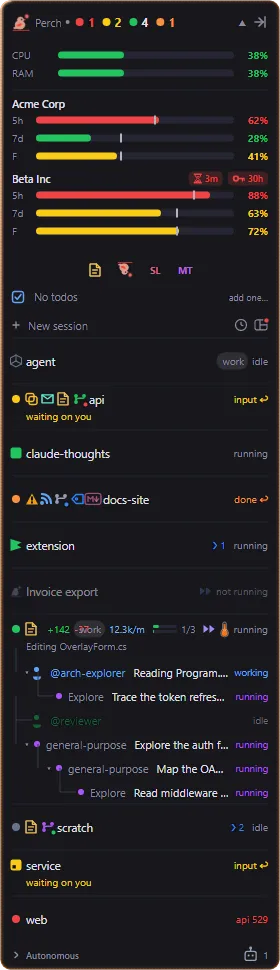
Click a row to focus its terminal
Section titled “Click a row to focus its terminal”Click any session row on the overlay. Perch works out which window owns that session by walking up from the Claude Code process to the app that started it, then brings that window forward.
- A minimised window is restored. A maximised one stays maximised.
- If the window is on another virtual desktop, Windows switches to that desktop.
- If two windows of the same app could match (two VS Code windows, say), Perch picks the one whose title contains the project name.
- Terminals that Windows Terminal adopted from elsewhere (for example a console launched from Explorer or another app) are found too.
- Clicking a row also clears its “done” badge.
Clicking a sub-agent row focuses its parent session.
When there’s no window
Section titled “When there’s no window”Some sessions have nowhere to go back to:
- No terminal on screen. If the session is still running but has no window, Perch shows a No window to focus notification with its process ID. Right-click the row and choose Terminate session… if you want to stop it.
- Autonomous (SDK) sessions. These run in the background with no window. Clicking one tells you so.
- Claude Desktop sessions. Perch brings the Claude Desktop window forward. If Claude Desktop has no window open, Perch launches it for you.
Click a notification
Section titled “Click a notification”Clicking a desktop notification for a session focuses that session’s terminal, the same way a row click does, and clears its “done” badge. If the window can’t be found, nothing else happens: you won’t get a second “no window” notification on top of the first.
Sessions in an IDE or Claude Desktop
Section titled “Sessions in an IDE or Claude Desktop”A session running inside an editor’s terminal is focused the same way: Perch brings the editor window forward. Perch recognises:
- Visual Studio Code (and Insiders), VSCodium, Cursor and Windsurf
- JetBrains IDEs: IntelliJ IDEA, PyCharm, WebStorm, PhpStorm, RubyMine, RustRover, DataSpell, DataGrip, GoLand, CLion, Rider, Aqua and Fleet
- Zed and Visual Studio
- Claude Desktop
With IDE status icons on (the default), a hosted session’s row shows its app’s icon in place of the status dot, tinted to the status colour, so you can see at a glance where each session lives. VS Code, Cursor, Windsurf and JetBrains IDEs get their own icons; the others use a generic one. Turn the setting off to see the plain coloured dot.
On macOS
Section titled “On macOS”On macOS, Perch focuses the exact Terminal window and tab running the session. To do that it needs the Automation permission, which macOS asks for the first time you click a session.
If you decline, or for any other terminal app (including iTerm2), Perch brings the terminal app forward instead of a specific window. You can grant the permission later in System Settings → Privacy & Security → Automation.
Sessions Perch runs
Section titled “Sessions Perch runs”Sessions you started in Perch (marked with the Perch mark, “Perch session” on hover) live in Perch’s own window, not a terminal. Clicking their row brings that window forward, or reopens it if you closed it. See The session window.
A Perch session that is “not running” (for example after Perch restarted) opens in its window too, ready for you to reply and wake it.
Move a terminal session into Perch
Section titled “Move a terminal session into Perch”To carry on a terminal session inside Perch’s window, right-click its row and choose Elevate to Perch (PoC)…. Perch asks first, then stops the terminal’s Claude process and resumes the same conversation in a Perch session window. The old terminal may print some teardown output; you can close it. In the Roost, the same action is Take over in Perch on a terminal session’s pane.
This is a proof of concept and only appears for terminal sessions Perch doesn’t already run.
Keyboard shortcuts
Section titled “Keyboard shortcuts”These global shortcuts work from anywhere. Change or turn them off on the Keyboard shortcuts page in Settings.
| Shortcut | What it does |
|---|---|
| Alt+Shift+S | Jump to next session: focuses the next active session’s window, one press at a time. |
| Alt+Shift+Space | Open session switcher: a search box in the middle of the screen. |
| Alt+Shift+R | Open the Roost: every session side by side. |
| Alt+Shift+W | Expand / collapse the overlay. |
The session switcher
Section titled “The session switcher”Press Alt+Shift+Space, type part of a session’s name, project or folder, and press Enter.
- Active sessions are listed first. Enter jumps to that session’s window.
- Below them are recently closed sessions. Enter reopens one in a new terminal, running
claude --resumein its folder. If no terminal can be launched, the command is copied to your clipboard. - Ctrl+Enter copies the
claude --resumecommand instead. - Esc, clicking away, or pressing the shortcut again closes it.
On Windows, Reopen sessions in (on the Keyboard shortcuts page) chooses the terminal used to reopen sessions: Automatic (Windows Terminal, else Command Prompt), Windows Terminal, PowerShell or Command Prompt.
The perch command
Section titled “The perch command”Perch adds a perch command to your PATH. Run it in a terminal to open a new session in Perch’s own window,
in the current folder, on the same monitor as your terminal. If the tray isn’t running yet, it starts in the
background and your prompt comes straight back, like code ..
perch # new session in the current folderperch C:\src\my-project # new session in another folderperch --continue # continue the most recent session in this folderperch --resume # pick a recent session to resumeperch --resume <id> # resume a session by idperch --tray # start the tray only, no sessionperch --help # list every optionperch --version # print the version--model <name> and --permission-mode <mode> set how a new session starts. -c, -r, -h and -v are
short forms of --continue, --resume, --help and --version.
Starting Perch any other way (the Start Menu, login, a double-click) only starts the tray.
Settings
Section titled “Settings”| Setting | What it does |
|---|---|
| IDE status icons | Show the host app’s icon in place of the status dot for sessions in an IDE or Claude Desktop. Off shows the plain coloured dot. |
The global shortcuts and Reopen sessions in are on the Keyboard shortcuts page in Settings.